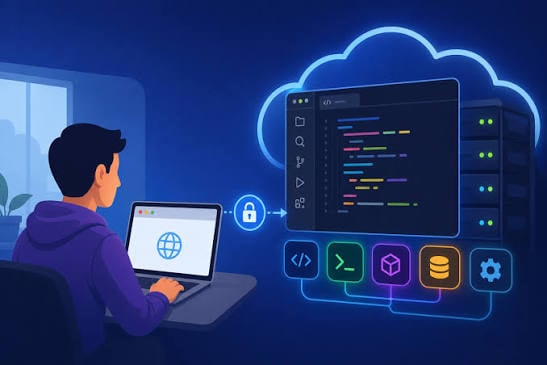
Software development no longer needs to happen entirely on one computer. Developers can write code on a local workstation while using remote machines to run applications, test software, manage dependencies and perform resource-intensive tasks.
This approach is particularly useful when projects require different operating systems. A developer may use Windows for everyday programming, Linux for server-related tasks and macOS for applications that depend on Apple's development tools.
Rather than purchasing and maintaining several computers, remote development environments provide a way to access the required systems over a network.
This guide explains what remote development environments are, how they work, the available setup options and how developers can combine different operating systems within a single development workflow.
What Is a Remote Development Environment?
A remote development environment is a computer or computing system that developers access over a network to write, execute, build or test software.
Instead of installing every development tool on a local computer, developers can connect to another machine that already contains the required operating system, applications, dependencies and project configuration.
For example, a developer may use a Windows laptop for everyday coding while connecting to a remote macOS machine to build an Apple-platform application.
Depending on the setup, access can be established through:
- Secure Shell (SSH).
- Remote desktop software.
- Remote development features in an integrated development environment (IDE).
- Cloud-based development platforms.
- Automated scripts and CI/CD pipelines.
The main idea is to separate the computer used for everyday interaction from the machine responsible for performing specific development tasks.
Why Do Developers Use Remote Development Environments?
Remote development environments can provide flexibility when local hardware, operating system compatibility or project requirements become difficult to manage.
1. Access to Different Operating Systems
Some software development tasks depend on a particular operating system.
For example, Apple's native development tools, including Xcode, require a compatible macOS environment. Developers who primarily use Windows or Linux may therefore need access to a separate Mac for certain Apple-platform workflows.
Similarly, some server applications and development tools are designed specifically for Linux.
A remote environment allows developers to access these systems without needing to replace their existing computers.
The important consideration is that remote access does not remove platform requirements. The remote machine must still meet the operating system, hardware and software requirements of the intended workload.
For Apple-platform development, refer to Apple's Xcode system requirements.
2. Reduce Workloads on Local Computers
Running several development tools, virtual machines, emulators and build processes can consume significant CPU, memory and storage resources.
Moving selected tasks to a remote machine can reduce the workload on a local computer.
For instance, a developer can continue writing code on a laptop while a separate machine handles compilation, automated testing or background scripts.
This can be particularly useful when:
- The local computer has limited memory or processing capacity.
- Multiple projects require different software configurations.
- Large build processes interrupt everyday development.
- Background tasks need to continue running independently.
However, remote development does not automatically make every task faster. Performance depends on the remote hardware, network connection and workload.
3. Maintain Consistent Development Configurations
Development projects often depend on specific versions of programming languages, SDKs, libraries and command-line tools.
Differences between individual computers can introduce compatibility problems and make debugging more difficult.
A dedicated remote environment can provide a known configuration for recurring tasks.
For example, a team can maintain:
- Specific programming language versions.
- Required SDKs and development frameworks.
- Project dependencies.
- Build tools and scripts.
- Operating system configurations.
- Testing utilities.
Documenting and maintaining these configurations makes it easier for developers to reproduce the same environment.
This does not eliminate every compatibility issue, but it can reduce unnecessary differences between development machines.
4. Separate Development Tasks
Not every development task needs to run on the same computer.
A local workstation can handle code editing, communication and general productivity, while a remote machine manages builds, testing, scheduled jobs or background processes.
This separation can help organise workflows and reduce interruptions during longer-running operations.
It is also useful for teams that need shared access to specific development resources, provided that permissions and workload management are configured appropriately.
Different Types of Remote Development Environments
The most suitable remote development setup depends on the project's operating system requirements, workload, budget and level of control needed.
1. Cloud-Based Development Environments
Cloud-based development environments provide access to coding tools through an online interface or a connected development application.
They can be convenient for:
- Lightweight programming projects.
- Collaborative development.
- Learning and experimentation.
- Temporary development environments.
- Projects that do not require specialised hardware.
Some platforms provide preconfigured development environments, reducing the amount of manual setup required.
However, available operating systems, hardware specifications, storage and system-level permissions depend on the provider.
A cloud-based development environment may not be suitable when a project requires direct access to specific physical hardware or a specialised operating system configuration.
2. Virtual Machines
Virtual machines allow developers to run isolated operating system environments on compatible host infrastructure.
For example, a developer may use a Linux virtual machine for testing a server application while continuing to use Windows as the primary operating system.
Virtual machines are useful when projects require:
- Different operating system configurations.
- Isolated testing environments.
- Separate dependency installations.
- Reproducible development setups.
- Temporary environments for troubleshooting.
However, performance depends on the host hardware and virtualisation platform.
Not every operating system can be virtualised on every hardware platform, and Apple operating system licensing and hardware requirements must be respected.
3. Dedicated Remote Machines
A dedicated remote machine provides a separate computer for a particular development workload.
Unlike a temporary cloud environment, it can maintain its installed tools, project dependencies and configuration over time.
This approach can be useful when projects require:
- Persistent access to development tools.
- Dedicated hardware resources.
- A particular operating system.
- Remote desktop access.
- Long-running scripts and background processes.
- Consistent build and testing environments.
For Apple-platform development, a dedicated Mac mini can serve as a remote macOS workstation or build machine.
Developers can connect remotely and use the system for compatible tasks without relying on their local computers to perform every operation.
The suitability of this approach depends on hardware performance, connectivity, maintenance arrangements and total cost.
How Developers Can Combine Windows, macOS and Linux
A cross-platform development workflow does not require every developer to use the same operating system.
Different systems can perform different roles according to the project's requirements.
For example, consider a developer who primarily works on Windows but also maintains iOS applications and server-side applications.
A possible setup could look like this:
| Operating system | Main purpose |
|---|---|
| Windows | Everyday coding, documentation and general development |
| macOS | Xcode, iOS builds, Apple-platform testing and macOS-specific tools |
| Linux | Server-side development, scripting and Linux-specific testing |
This arrangement allows each system to handle tasks for which it is suitable.
Example of a Cross-Platform Workflow
A typical workflow may follow these steps:
- The developer writes and edits source code on a Windows workstation.
- Changes are committed and pushed to a shared Git repository.
- A remote Linux machine handles compatible server-side tests.
- A remote Mac retrieves the project for macOS-specific compilation and testing.
- The results are reviewed before the changes are merged or released.
A simplified workflow looks like this:
             Developer
                 |
                 v
         Windows Workstation
                 |
                 | Push code
                 v
           Git Repository
                 |
          +------+------+
          |             |
          v             v
     Remote Linux   Remote macOS
          |             |
          v             v
     Server Tests    Xcode Builds
          |             |
          +------+------+
                 |
                 v
          Review Results
Git provides a common way to manage source code across these systems.
For example, developers can push changes from their local workstation:
git add .
git commit -m "Update application"
git push origin main
The remote machines can then retrieve the latest version of the project and execute the tasks assigned to them.
This workflow helps keep source code organised without requiring every operating system to maintain a separate, manually copied project folder.
Remote Access Methods for Development
Once a remote environment is available, developers need a reliable way to connect to it.
The connection method depends on whether the task requires a command-line interface, graphical desktop or integrated development environment.
SSH for Command-Line Access
Secure Shell (SSH) provides encrypted remote access to another computer through a command-line interface.
It is useful for:
- Running scripts.
- Managing files.
- Installing development tools.
- Executing commands.
- Monitoring background processes.
- Administering remote machines.
A basic SSH connection looks like this:
ssh username@remote-host
The username and remote hostname must be replaced with the actual connection details.
SSH is especially useful for developers who need to manage remote systems without opening a graphical desktop.
Remote Desktop Software
Remote desktop software allows developers to interact with another computer through its graphical interface.
This is useful when working with applications that require direct interaction, such as Xcode, development dashboards, system settings and graphical testing tools.
For example, a Windows developer can connect to a remote Mac and use its macOS desktop to open Xcode.
Remote desktop performance depends on network latency, connection stability and the remote machine's resources.
IDE-Based Remote Development
Some integrated development environments support connecting to remote systems.
This allows developers to edit files locally while using remote resources for selected development operations.
Depending on the IDE and configuration, this can provide access to remote terminals, project files, dependencies and execution environments.
It can be a practical option for developers who prefer working within a familiar code editor rather than switching repeatedly between separate applications.
Security Considerations for Remote Development
Remote development environments introduce additional security responsibilities.
A remote machine may contain source code, credentials, certificates, API keys, signing assets and other sensitive project information.
The following practices can help reduce security risks.
1. Use strong authentication
Use SSH keys or other strong authentication methods. Avoid relying solely on weak or reused passwords.
2. Restrict ret teams, shared infrastructure should not mean unrestricted access to every project or credential. Access should reflect each person's responsibilities.
Is a Remote Mac Mini Worth Considering?
A remote Mac mini can be a practical option for developers who need macOS access but prefer to use Windows or Linux as their primary working environment.
For example, developers can use a local laptop for writing code and everyday tasks while accessing a remote Mac mini for compatible macOS development workflows, Xcode builds and automated testing.
This can be useful when:
- A developer needs Xcode but does not own a Mac.
- A team needs a dedicated macOS build environment.
- macOS access is required only for selected project tasks.
- Developers want to separate Apple-platform workloads from their main computers.
- A project requires a persistent remote macOS environment.
Instead of purchasing and maintaining another physical computer, developers can also evaluate Mac mini rental services.
BlendHosting Mac mini hosting is one option to consider when evaluating dedicated remote Mac infrastructure. The existing ServerGigabit Mac mini service is another option to compare.
Before selecting a provider, review the available hardware specifications, memory, storage, remote access methods, administrative permissions, pricing and support arrangements.
Network reliability and the ability to maintain a consistent development environment are also important considerations.
A rented Mac mini may suit developers who need recurring access to macOS without making an upfront hardware purchase. Purchasing a Mac mini may be more suitable for people who need long-term local access and prefer to manage their own hardware.
The right choice depends on usage frequency, project requirements, budget and the level of control needed.
Final Thoughts
Remote development environments give developers more flexibility in how computing resources are used. Rather than depending on a single computer for every task, developers can combine local workstations, cloud services, virtual machines and dedicated hardware according to project requirements.
For developers working across Windows, Linux and macOS, this approach can simplify access to specialised tools and help separate everyday coding from resource-intensive tasks.
A well-planned environment should provide the required operating systems, consistent configurations, secure remote access and sufficient resources for the development workload.
As software projects become more complex, selecting the right combination of local and remote systems can help developers maintain a more organised, flexible and manageable workflow.
Comments
Join the discussionNo comments yet. Be the first to comment.